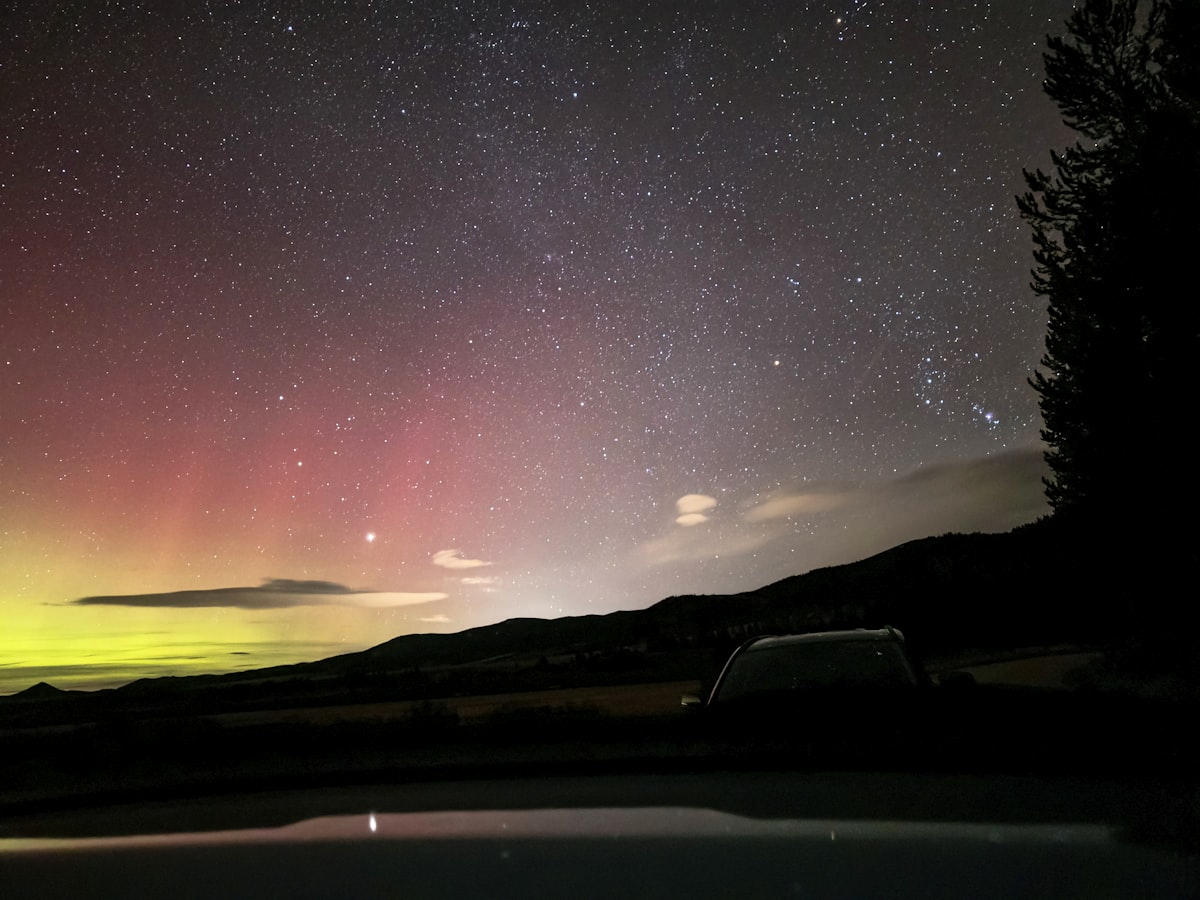
Best iPhone Settings for Northern Lights Photography
Capturing the Aurora with Your iPhone
You don’t need a heavy DSLR to capture the Northern Lights. Modern smartphones, especially iPhones, have incredibly powerful computational photography features that can pull colors out of the dark sky that your naked eye might even miss.
1. Use Night Mode (and max it out)
When you point your iPhone at the dark sky, it should automatically engage Night Mode (the yellow moon icon).
- Tap the icon and slide the exposure time to the Max.
- If you’re hand-holding, it might max out at 3s or 10s.
- Pro Tip: If you mount your iPhone on a tripod, it will detect that it’s perfectly still and allow you to set the exposure time to 30 seconds. This is the secret to getting DSLR-like photos!
2. Turn off the Flash
This seems obvious, but double-check that your flash is off. Flash will only illuminate the ground in front of you and ruin your (and everyone else’s) night vision.
3. Shoot in ProRAW (if available)
If you have an iPhone Pro model, go to Settings > Camera > Formats and turn on Apple ProRAW. This saves much more data in the shadows and highlights, allowing you to edit the aurora’s green and purple colors beautifully in Lightroom later.
4. Recommended Gear
To get that 30-second Night Mode exposure, you must use a tripod.
🔗 Buy our recommended iPhone Tripod on Amazon
Conclusion
Patience is key. Keep your hands warm, use a remote shutter (like your Apple Watch or volume buttons on wired headphones) to avoid shaking the camera, and enjoy the show!